How M-Pesa Integration Simplifies Payments for Small Businesses in Kenya
Learn how M-Pesa POS integration helps Kenyan small businesses accept mobile payments faster, reconcile transactions, and keep accurate financial records.
M-Pesa Changed Everything for Kenyan Business
When Safaricom launched M-Pesa in 2007, it transformed how Kenya handles money. Today, over 30 million Kenyans use M-Pesa, and the platform processes billions of shillings in transactions every day. For small businesses, M-Pesa is no longer optional — it is expected.
Customers increasingly prefer paying via M-Pesa. It is convenient, leaves a digital trail, and avoids the hassle of carrying cash. For duka owners, accepting M-Pesa means fewer cash-handling risks and access to a wider customer base. But without proper integration into your sales system, M-Pesa can actually create more work, not less.
The Problem with Unintegrated M-Pesa
Here is what happens in most dukas today: a customer pays via M-Pesa, you hear the confirmation message on your phone, you check it is the right amount, and then you... write it down in your notebook? Try to remember it later? This creates several problems:
- Double record-keeping — You track M-Pesa transactions on your phone and sales in your notebook separately. Reconciling them is a nightmare.
- Missed confirmations — In a busy shop, you might not check the M-Pesa message properly. A customer could show a fake screenshot or send less than the full amount.
- End-of-day confusion — When counting your day's takings, you have to add cash in the till plus M-Pesa transactions from your phone. Errors are common.
- No product-level tracking — Your M-Pesa statement shows amounts but not what was purchased. You cannot link specific payments to specific products.
What M-Pesa Integration Looks Like
When your POS system integrates with M-Pesa, the mobile payment becomes part of your sales record automatically. Here is the ideal flow:
- You ring up items in the POS app.
- The customer chooses to pay via M-Pesa.
- The app sends an STK push to the customer's phone (a payment request pops up on their screen).
- The customer enters their M-Pesa PIN to confirm.
- Payment is confirmed and the sale is recorded — payment method, amount, products, and timestamp all in one place.
No manual checking. No double entry. No reconciliation headaches.
Benefits of M-Pesa POS Integration
Faster Checkout
With STK push, the customer does not need to navigate to M-Pesa, find your till number, and type in the amount. They just confirm on their phone. This speeds up the transaction and reduces errors (wrong till numbers, wrong amounts).
Accurate Financial Records
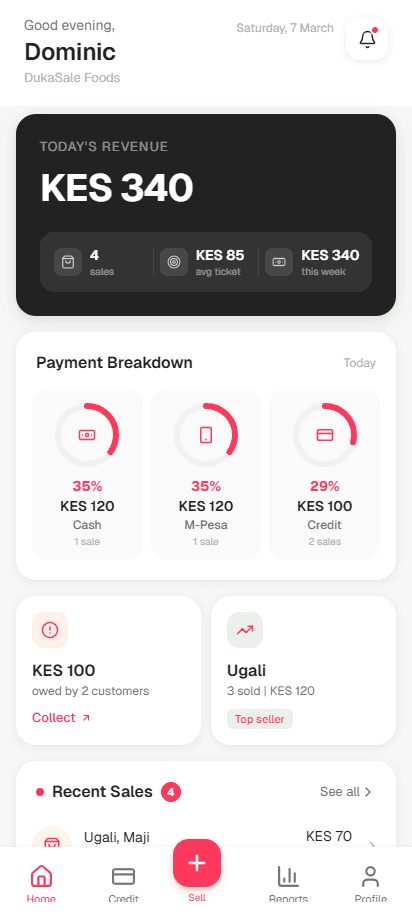
Every M-Pesa payment is linked to a specific sale with specific products. At the end of the day, your reports show total cash sales, total M-Pesa sales, and total credit sales — all automatically calculated.
Reduced Fraud Risk
Fake M-Pesa screenshots are a growing problem. When your POS verifies the payment directly through the M-Pesa API, you know the money actually arrived. No need to squint at a phone screen trying to verify a confirmation message.
Better Cash Flow Visibility
When your POS tracks both cash and M-Pesa, you get a complete picture of your revenue. You can see trends — are more customers paying via M-Pesa? Is your average M-Pesa transaction larger than cash? This data helps you make better business decisions.
Easier Tax Compliance
As KRA moves towards more digital tax collection, having all your transactions recorded digitally — including M-Pesa payments — makes compliance much simpler. Your POS reports can serve as your financial records.
Setting Up M-Pesa for Your Duka
Getting a Till Number
To accept Lipa na M-Pesa, you need a business till number or a paybill number. You can apply through Safaricom's M-Pesa for Business portal. Requirements include a business permit, ID, and KRA PIN. The process typically takes a few days.
Connecting to Your POS
Different POS apps handle M-Pesa integration differently. Some, like DukaSale, let you configure your M-Pesa credentials directly in the app settings. Once configured, the STK push feature becomes available at checkout.
If your POS does not support direct integration, you can still record M-Pesa as a payment method manually — it is less automated but still better than separate tracking.
Tips for Managing M-Pesa Payments
- Always verify before handing over goods — Whether through STK push or by checking your M-Pesa message, confirm payment before completing the sale.
- Reconcile daily — Compare your POS M-Pesa total with your actual M-Pesa balance. They should match.
- Watch your M-Pesa charges — Transaction fees eat into your margins. Know what you are paying per transaction and factor it into your pricing if necessary.
- Keep your float adequate — If you also offer M-Pesa agent services, keep your business and agent floats separate.
- Train staff on the process — Every employee should know how to process an M-Pesa payment through the POS correctly.
The Future of Payments in Kenya
Mobile money is only growing. With features like M-Pesa's Super App, QR code payments, and integration with banking services, the businesses that thrive will be those with systems that can keep up. A POS app that integrates with M-Pesa today positions you well for whatever payment innovations come next.
The Bottom Line
M-Pesa integration is not just about convenience — it is about accuracy, speed, and having a complete picture of your business finances. Whether you process 10 M-Pesa transactions a day or 100, having them flow directly into your sales records eliminates errors, saves time, and gives you the data you need to make smart decisions for your duka.
Ready to try DukaSale?
Free POS app for Kenyan dukas. Track sales, inventory, M-Pesa payments, and customer credit — all offline.
Download Free